Node Types
Node Types Reference
StoryFlow Editor's visual scripting system provides 21 specialized node types for creating complex interactive narratives without code.
Overview
Nodes are the building blocks of StoryFlow Editor's visual scripting system (also referred to as the node editor). Each node type represents a specific operation or action that can be combined to create complex branching narratives. Instead of writing code, you connect these nodes visually to define your story's logic and flow. All nodes are organized into four main categories, matching the node creation menu in the editor.
Node Categories
- Flow Control (6 nodes): Start, Dialogue, Run Script, Branch, End, Comment
- Boolean Operations (4 nodes): Not, And, Or, Equal
- Integer Operations (7 nodes): Greater Than, Greater Than or Equal, Less Than, Less Than or Equal, Equal, Plus, Minus
- Variables (4 nodes): Get Boolean, Set Boolean, Get Integer, Set Integer
Visual Indicators:
- Yellow glow: Boolean operations and boolean variable nodes
- Cyan glow: Integer operations and integer variable nodes
- Green glow: Start and Run Script nodes
- Red glow: End node
- Purple glow: Dialogue node
- White glow: Comment node
Flow Control
Control flow nodes determine how your story progresses from one point to another. They manage execution order, branching, dialogue presentation, and script organization.
Start
Start
The Start node is the entry point for every script. When a script is executed, the runtime begins at the Start node and follows the connections to determine what happens next.
Key Features:
- Required: Every script must have exactly one Start node
- Fixed ID: Must have the ID "0" (enforced by validation)
- One Output: Has a single output handle on the right side
- Visual: Green glow effect to indicate it's the entry point
Important
Every script must have exactly ONE Start node with the ID "0". This is where your story begins execution. The editor automatically creates this node when you create a new script.
Dialogue
Dialogue
Example Dialogue Node
Example Option
Condition
On Click
The Dialogue node is the heart of your interactive story. It displays text to the player, can show background images, and presents options that branch your narrative.
Properties:
- Title: Optional text shown in the editor node header for organization (not displayed to players)
- Text: Main dialogue content shown to the player
- Background Image: Optional image path for visual novels and illustrated stories
- Options: List of options the player can select (e.g., "Accept quest", "Decline quest")
Handles:
- Input (Top): Execution flow - connects from previous nodes
- Condition (Left): Optional boolean condition to show/hide the option
- On Click (Right): Execution flow when the player selects this option
Use Cases:
- Display narrative text and character dialogue
- Present branching options to players
- Show images for visual novels
- Create conditional dialogue options based on variables
Tip
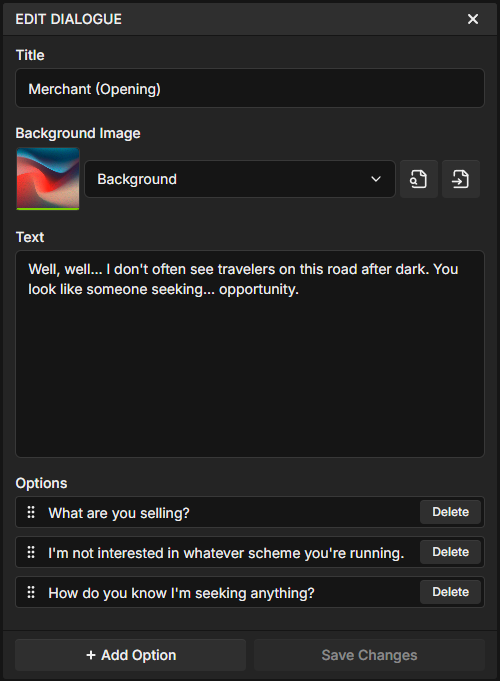
Double-click a Dialogue node to open the Dialogue Editor in the right sidebar. This provides a dedicated interface for editing all dialogue properties including text, options, and background images. Learn more about the Dialogue Editor →
Run Script
Run Script
Select Script
The Run Script node loads and executes another .sfe script file. This enables modular story organization by splitting your narrative across multiple files.
Properties:
- Script Path: Select a
.sfefile from your project's Content folder - Searchable Dropdown: Quickly find scripts by typing their name
- Quick Actions: Show in Content Browser or Open File buttons for easy navigation
Handles:
- Input (Left): Execution flow from previous node
- Output (Right): Continues execution after the called script completes
Use Cases:
- Organize large stories into chapters or scenes
- Reuse common dialogue sequences across multiple stories
- Create modular narrative components
- Separate main menu, settings, and gameplay flows
Branch
Branch
True
Condition
False
The Branch node creates conditional logic in your story. It evaluates a boolean condition and routes execution to either the True or False output path.
Inputs:
- Execution Input (Top Left): Incoming execution flow
- Condition Input (Bottom Left): Boolean value to evaluate (can connect a boolean handle or use the checkbox)
Outputs:
- True Output (Top Right): Execution continues here if condition is true
- False Output (Bottom Right): Execution continues here if condition is false
Use Cases:
- Check if the player has a specific item (boolean variable)
- Route to different dialogue based on previous options
- Combine multiple boolean conditions with And/Or nodes
- Create conditional story paths based on stats
Note
When the Condition input is not connected, a checkbox appears allowing you to manually set the default value. This is useful for testing or creating static branches.
End
End
The End node terminates the current script execution. When the runtime reaches an End node, the story flow stops at that point.
Features:
- Single Input: Accepts execution flow from previous nodes
- No Outputs: Terminates the execution path
- Visual: Red glow effect to clearly mark endpoints
Use Cases:
- Mark the end of a conversation or story branch
- Terminate execution after final dialogue
- Create dead-end paths in your narrative
- Define completion points for side quests or encounters
Comment
Comment
Example comment text
The Comment node is a special node for adding text annotations to your node graph. It doesn't participate in execution and is purely for documentation purposes.
Features:
- Resizable: Drag the resize handles to adjust width and height (minimum 150x80 pixels)
- Multiline Text: Add detailed notes and explanations
- No Handles: Cannot be connected to other nodes
- Visual: White glow effect to distinguish from execution nodes
Use Cases:
- Document complex logic sections
- Leave notes for collaborators
- Annotate and organize large node graphs
- Add TODOs and reminders for future work
Boolean Operations
Boolean operation nodes perform logical operations on true/false values. They're essential for creating complex conditional logic by combining multiple boolean conditions. All boolean nodes have a yellow glow to indicate they work with boolean values.
Not
NOT
The NOT node inverts a boolean value without changing the original: outputs false when input is true, outputs true when input is false.
Key Features:
- Single Input: Boolean value on the left side
- Single Output: Inverted boolean value on the right side (does not modify the input)
- Use Case: Check if a condition is false (e.g., player does NOT have key)
And
AND
The AND node returns true only if BOTH inputs are true.
Key Features:
- Two Inputs: Boolean values on the left side (top and bottom)
- Single Output: True only if both inputs are true
- Use Case: Check multiple requirements (e.g., BooleanhasKey AND BooleanhasMap)
- Default Values: Checkboxes appear when inputs aren't connected
Or
OR
The OR node returns true if ANY input is true.
Key Features:
- Two Inputs: Boolean values on the left side (top and bottom)
- Single Output: True if at least one input is true
- Use Case: Check alternative conditions (e.g., BooleanhasKey OR BooleanknowsPassword)
- Default Values: Checkboxes appear when inputs aren't connected
Equal
==
The Equal (Boolean) node returns true if both boolean inputs have the same value.
Key Features:
- Two Inputs: Boolean values on the left side (top and bottom)
- Single Output: True if both inputs match (both true OR both false)
- Use Case: Compare two boolean states (e.g., check if choice1 equals choice2)
- Default Values: Checkboxes appear when inputs aren't connected
Integer Operations
Integer operation nodes perform comparisons and arithmetic on whole numbers. All integer nodes have a cyan glow to indicate they work with numeric values.
Greater Than
Returns true if the top input is greater than the bottom input.
- Example: 10 > 5 = true
- Use Case: Check if IntegerplayerHealth > 0 (player is alive)
Greater Than or Equal
=
Returns true if the top input is greater than or equal to the bottom input.
- Example: 10 >= 10 = true
- Use Case: Check if Integerscore >= 100 (unlock achievement)
Less Than
<
Returns true if the top input is less than the bottom input.
- Example: 5 < 10 = true
- Use Case: Check if Integergold < IntegeritemPrice (cannot afford)
Less Than or Equal
<=
Returns true if the top input is less than or equal to the bottom input.
- Example: 10 <= 10 = true
- Use Case: Check if Integerlevel <= IntegermaxLevel (hasn't exceeded cap)
Equal
==
Returns true if both integer inputs are exactly equal.
- Example: 10 == 10 = true
- Use Case: Check if Integerlevel == IntegerrequiredLevel (exact match)
Plus
The Plus node adds two integers together (top + bottom).
- Two Inputs: Top and bottom integer inputs (cyan handles)
- Integer Output: Cyan handle outputs the sum
- Use Case: Add gold reward to IntegerplayerGold's total
Minus
The Minus node subtracts the bottom input from the top input (top - bottom).
- Two Inputs: Top and bottom integer inputs (cyan handles)
- Integer Output: Cyan handle outputs the difference
- Use Case: Deduct item cost from IntegerplayerGold
Common Features (All Integer Operation Nodes):
- Cyan Glow: All integer operation nodes use cyan coloring
- Number Fields: When inputs aren't connected, number fields appear for manual values
- Negative Support: All nodes support negative integers
- Type Safety: Can only connect to other integer handles (except comparison outputs which are boolean)
Variables
Variable nodes allow you to read (Get) and write (Set) values to boolean and integer variables. Variables store state information that persists throughout your story.
Get Boolean
hasKey
Read a boolean variable's current value. Boolean variables store true/false values that represent flags, states, and binary choices. Examples: hasCompletedQuest, playerIsAlive, doorIsOpen, talkedToMerchant.
Key Features:
- Output: Single boolean handle (yellow) on the right side
- Display: Shows the variable name in the node
- Global Indicator: Shows globe icon if accessing a global variable
- Use Case: Check if player has an item, quest is completed, or door is unlocked
Set Boolean
SET
hasKey
Change a boolean variable's value during story execution.
Key Features:
- Inputs: Execution flow (top left), boolean value to set (bottom left)
- Outputs: Execution flow continues (top right), current value pass-through (bottom right)
- Default Value: Checkbox appears when value input is not connected
- Use Case: Mark quest as completed, unlock door, or set player state
Get Integer
playerGold
Read an integer variable's current value. Integer variables store whole numbers for stats, counters, scores, and quantities. Examples: IntegerplayerHealth, IntegergoldAmount, IntegerquestProgress, IntegerenemyCount.
Key Features:
- Output: Single integer handle (cyan) on the right side
- Display: Shows the variable name in the node
- Global Indicator: Shows globe icon if accessing a global variable
- Use Case: Get IntegerplayerHealth, IntegergoldAmount, or IntegerquestProgress for comparisons
Set Integer
SET
playerGold
Change an integer variable's value during story execution.
Key Features:
- Inputs: Execution flow (top left), integer value to set (bottom left)
- Outputs: Execution flow continues (top right), current value pass-through (bottom right)
- Default Value: Number input field appears when value input is not connected
- Validation: Automatically removes leading zeros from input
- Use Case: Update IntegerplayerHealth, add IntegerplayerGold, or increment IntegerquestProgress
Creating Variable Nodes
You can create Get/Set nodes in two ways:
- Drag from Variables Panel: Drag a variable onto the canvas and choose Get or Set
- Context Menu: Right-click and find the variable under the Variables section
Variable Scopes:
- Local Variables: Exist only within the current script file
- Global Variables: Persist across all scripts in your project (marked with globe icon)
Example: Adding Gold
To add 50 gold to the player's total:
- Create a Get Integer node for "playerGold" variable
- Create a Plus node
- Connect Get node to Plus node's top input
- Set Plus node's bottom input to 50 (or connect another Get node)
- Create a Set Integer node for "playerGold"
- Connect Plus node's output to Set node's value input
Connection Types
StoryFlow Editor enforces strict type safety for connections. Handles can only connect to compatible handles, preventing logic errors.
Primary Handles (Execution Flow):
- Appearance: Play icon (triangle), white color
- Purpose: Define the order in which nodes execute
- Rules: Can only connect to other primary handles
- Used By: Start, End, Dialogue, Run Script, Branch, Set nodes
Boolean Handles (Yellow):
- Appearance: Yellow circle with play icon overlay
- Purpose: Pass true/false values between nodes
- Rules: Can only connect to other boolean handles
- Used By: Boolean Get/Set, logic nodes (And, Or, Not, Equal), comparison nodes, Branch condition input
Integer Handles (Cyan):
- Appearance: Cyan circle with play icon overlay
- Purpose: Pass numeric values between nodes
- Rules: Can only connect to other integer handles
- Used By: Integer Get/Set, arithmetic nodes (Plus, Minus), comparison nodes
Connection Validation
The editor prevents invalid connections automatically. You cannot connect a boolean handle to an integer handle, a node to itself, or exceed maximum connection limits. This type safety ensures your story logic is always valid.
Next Steps
Now that you understand all 21 node types, learn how to work with variables to create dynamic, state-driven narratives, or explore exporting your stories as playable HTML games.
Related Topics
→ Visual Scripting→ Connections→ Variables→ Dialogue Editor